Why malware borrows this name
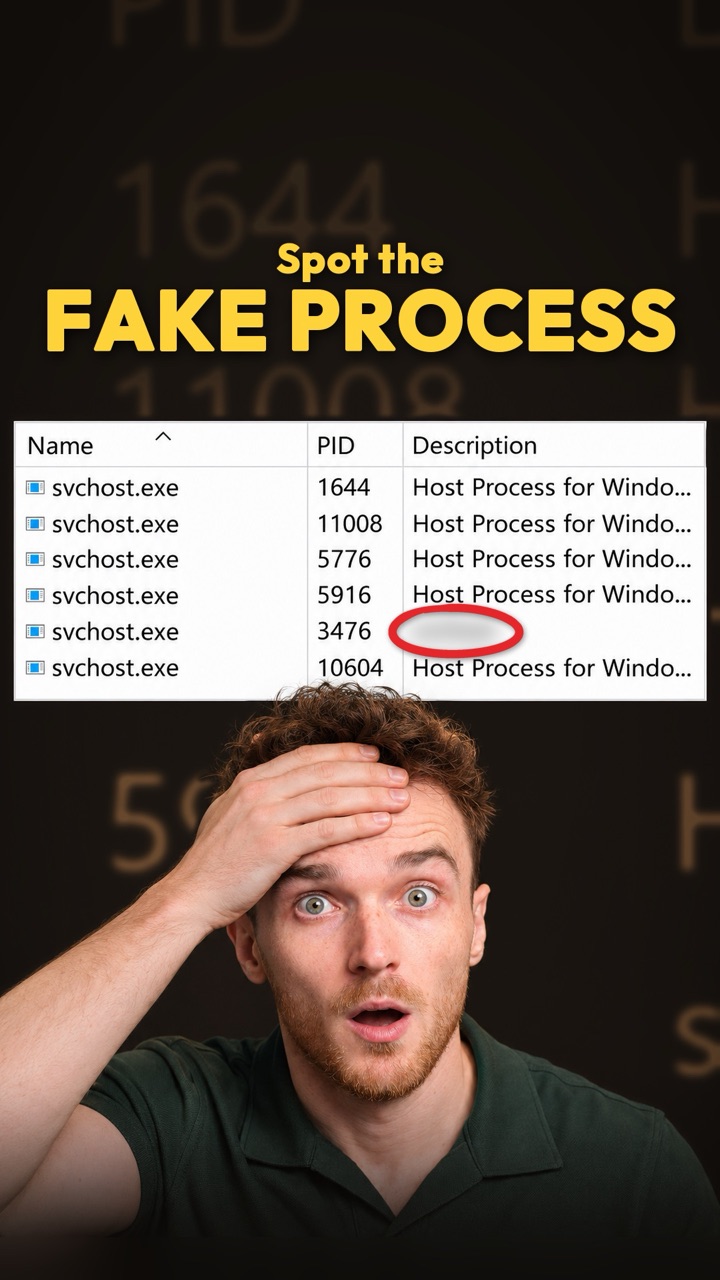
svchost.exe, the Service Host, is the Windows program that loads many of the background services on your PC. Windows starts a copy whenever one of those services is needed, so a normal machine has a long list of them running at once.
When there are that many genuine copies, one more doesn’t stand out. That is why it is one of the most borrowed names on Windows.
What we planted
On a Windows 11 test machine we put a program of our own in the Downloads folder, named it svchost.exe and started it from PowerShell. Then we went looking for it the way an incident responder would.
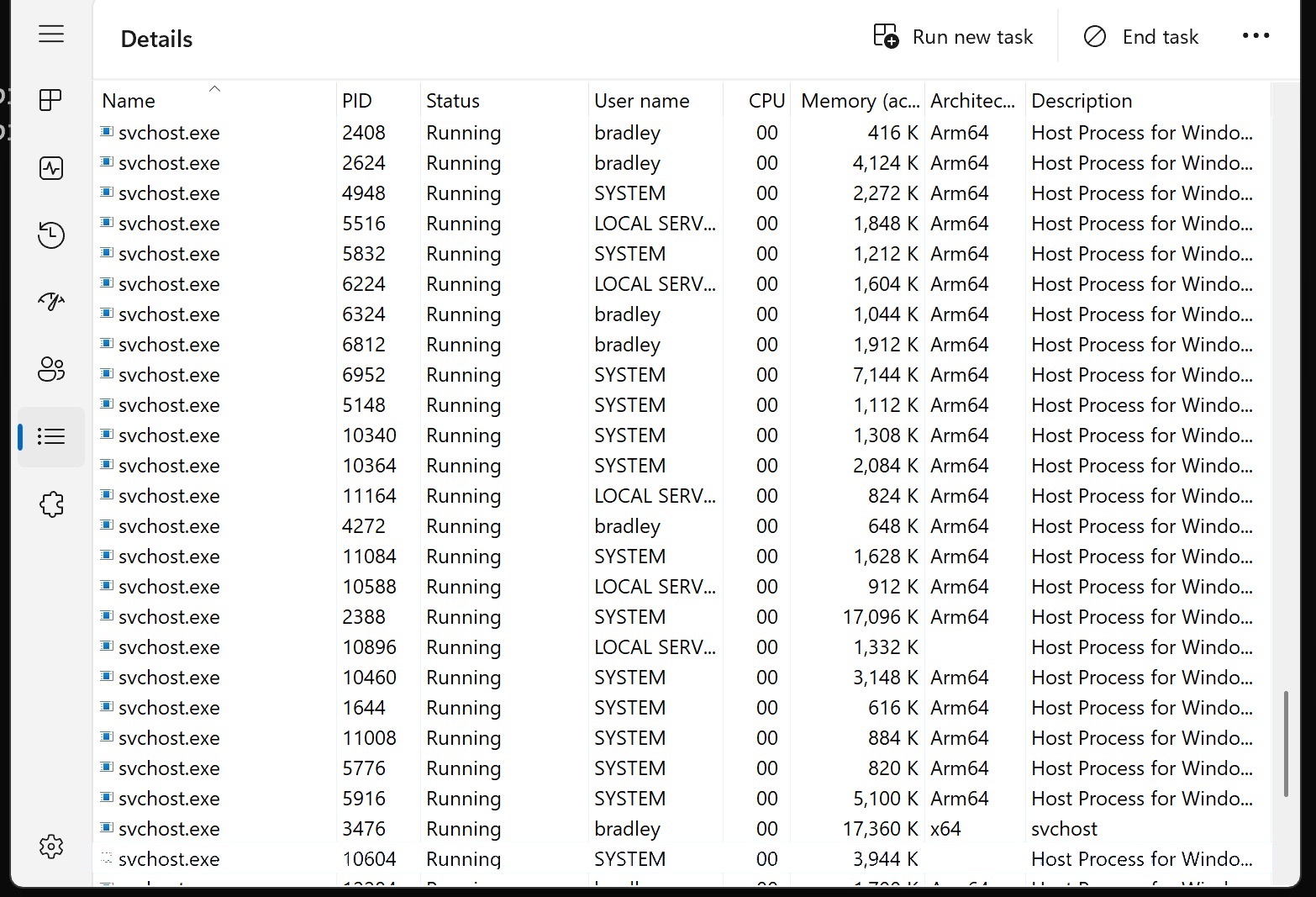
- What a genuine copy saysEvery real svchost.exe describes itself as “Host Process for Windows Services”.
- Ours just says “svchost”Malware authors copy the name but often skip the description. It’s the quickest clue on this screen.
- Note the PID: 3476The process ID is how you follow this one copy into every other check below.
The four clues
- 1DescriptionTask Manager › Details › DescriptionOn our wiki: What a normal svchost looks likeGenuine svchost
Host Process for Windows ServicesOur fakesvchost - 2LocationRight-click › Open file locationOn our wiki: Running from the wrong folderGenuine svchost
C:\Windows\System32Our fakeC:\Users\bradley\Downloads - 3Parent processWhat started itOn our wiki: Started by the wrong parentGenuine svchost
services.exeOur fakepowershell.exe - 4Digital signatureWho vouches for the fileOn our wiki: Renamed or unsigned filesGenuine svchost
Valid, signed by Microsoft WindowsOur fakeNot signed
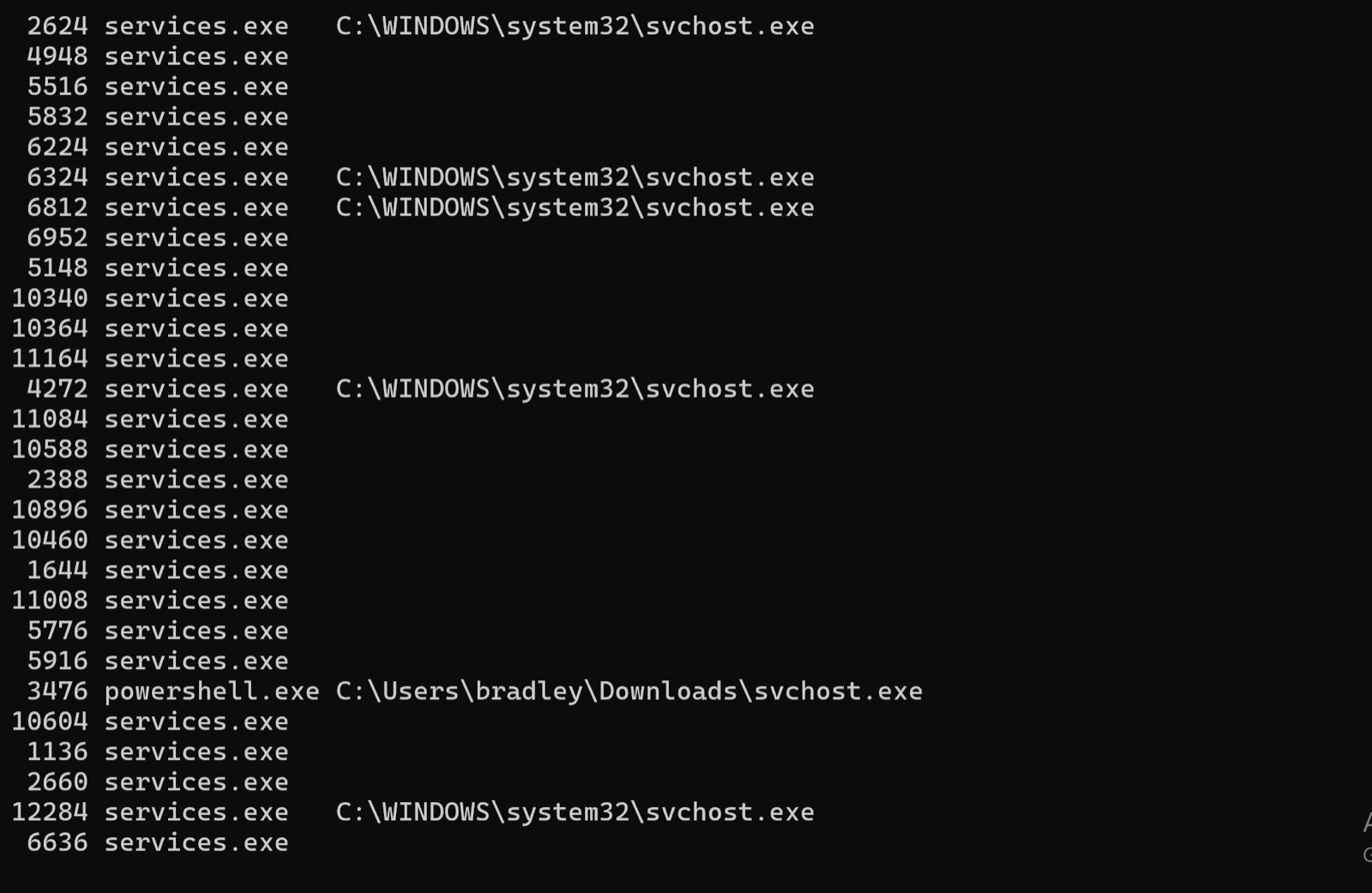
- Every genuine copy: services.exeWindows starts its real service hosts from services.exe, so this column should read the same all the way down.
- Ours: powershell.exeA service host started by PowerShell is the wrong parent. Something ran it by hand.
- Running out of DownloadsThe real file lives in C:\Windows\System32. Nothing in Downloads should be called svchost.exe.

- The real one is signed by MicrosoftValid, with Microsoft Windows as the signer.
- Ours isn’t signed at allNo Windows program in System32 ships unsigned.
The same checks in PowerShell
Task Manager is fine for one machine. These two commands run the same checks on every copy at once: the first lists each one's parent and path, the second checks the signature on each file they run from. Run PowerShell as administrator, or some paths come back empty. Our wiki has more ways to list processes.
Get-CimInstance Win32_Process -Filter "Name='svchost.exe'" | ForEach-Object { [pscustomobject]@{ PID = $_.ProcessId Parent = (Get-Process -Id $_.ParentProcessId -ErrorAction Ignore).Name Path = $_.ExecutablePath }}Get-CimInstance Win32_Process -Filter "Name='svchost.exe'" | Where-Object ExecutablePath | Select-Object -ExpandProperty ExecutablePath -Unique | ForEach-Object { Get-AuthenticodeSignature -FilePath $_ } | Select-Object Status, Path, @{ n = 'Signer'; e = { $_.SignerCertificate.Subject } }Check your own PC
- Press Ctrl + Shift + Esc to open Task Manager, then choose Details.
- Click the Name column to sort, and find svchost.exe. A long list of them is normal.
- Right-click one and choose Open file location. It should open C:\Windows\System32.
- If a Windows name is running from Downloads, Temp or your own user folder, run a scan or tell your IT or security team.
Don’t just end the task. You lose what it was doing, which is exactly what an investigator needs, and it might be something you rely on.
What we do next on a real case
Finding the process is the start. These are the questions that decide how big the problem is, in the order we answer them.
- Capture it before anything changes
Process ID, full path, parent, command line and a hash of the file, written down before anyone stops it. If it matters, we take a copy of its memory too.
Dumping a process - Work out how it got there
What dropped it, from where and when: browser downloads, the parent process’s own history, and PowerShell logs if they were switched on.
Process trees - Check it can’t come back
Look for anything set to restart it after a reboot, such as a Run key, a service or a scheduled task.
Run and RunOnce keys - Look wider
Search other machines for the same file name in the wrong folder, the same hash and the same parent-child pattern.
Process listings and scans
What this doesn’t prove
Tested 9 Nov 2026.
- None of these signs proves malware on its own. Other software sometimes uses names that look like Windows ones.
- Genuine svchost copies can run under your own account (per-user services do), so the User name column tells you nothing here.
- Blank paths in the listing aren’t suspicious. They are copies a standard user can’t read; run PowerShell as administrator to see them all.
Go deeper on our wiki
Sources
- svchost.exe, Wrong Path and Wrong Parent pagesInvicta Group Cyber wiki, read 9 Nov 2026
- Task Manager, process listing and signature capturesOur Windows 11 test machine, 9 Nov 2026