How the trick works
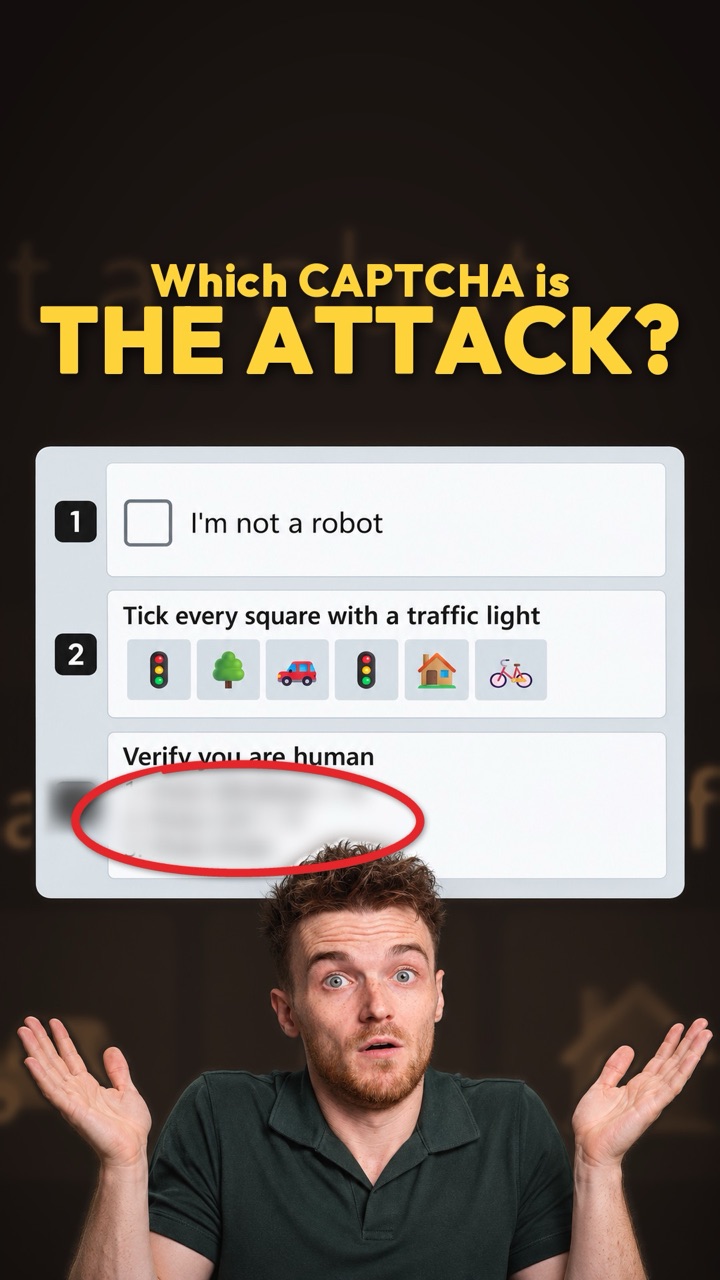
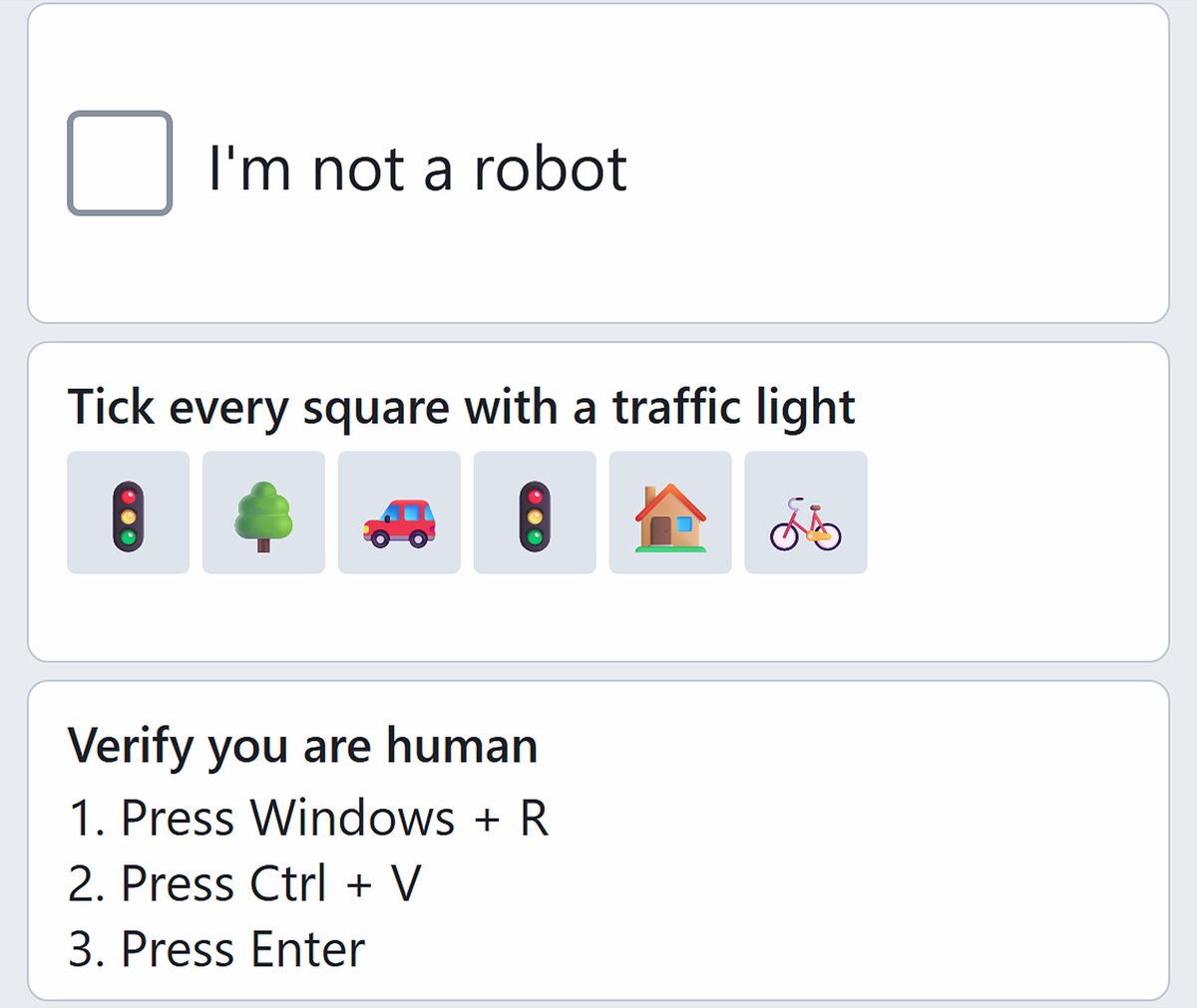
The page copies a command to your clipboard in the background, then dresses up the next step as a human check. Windows + R opens the Run box, Ctrl + V pastes the attacker’s command, and Enter runs it. You have run the attack yourself.
It is common. Microsoft Defender saw commands planted this way run on more than 1.1 million devices between February and early May 2026 [1], and that only counts the devices Defender was watching.
Three versions we rebuilt
Press Windows + R, Ctrl + V, Enter
The classic. Three key presses that open the Run box, paste a command the page already copied, and run it.
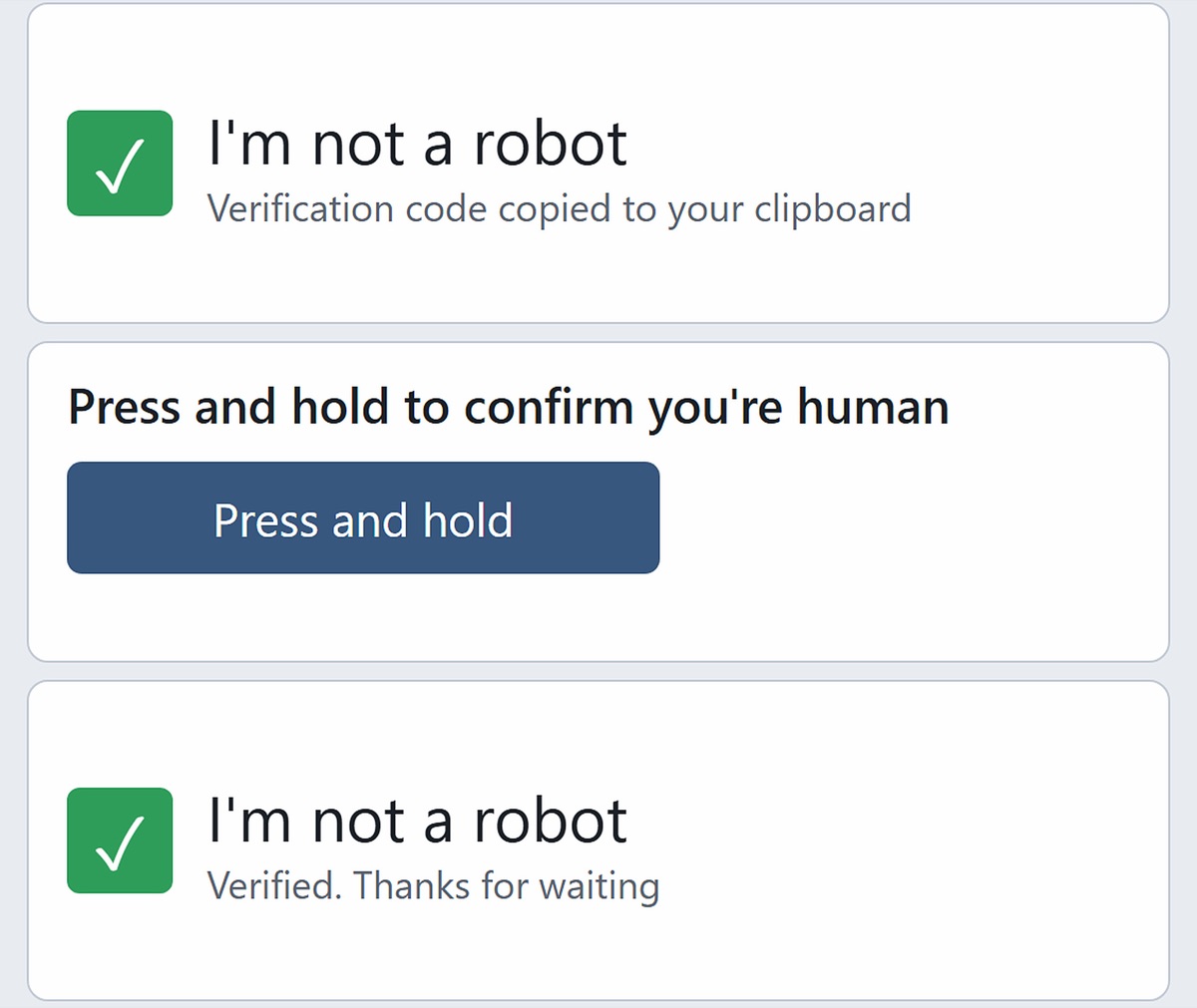
“Verification code copied to your clipboard”
A tick box has no reason to touch your clipboard. Most real lures don’t even tell you: the copy happens silently, and the next screen asks you to paste.
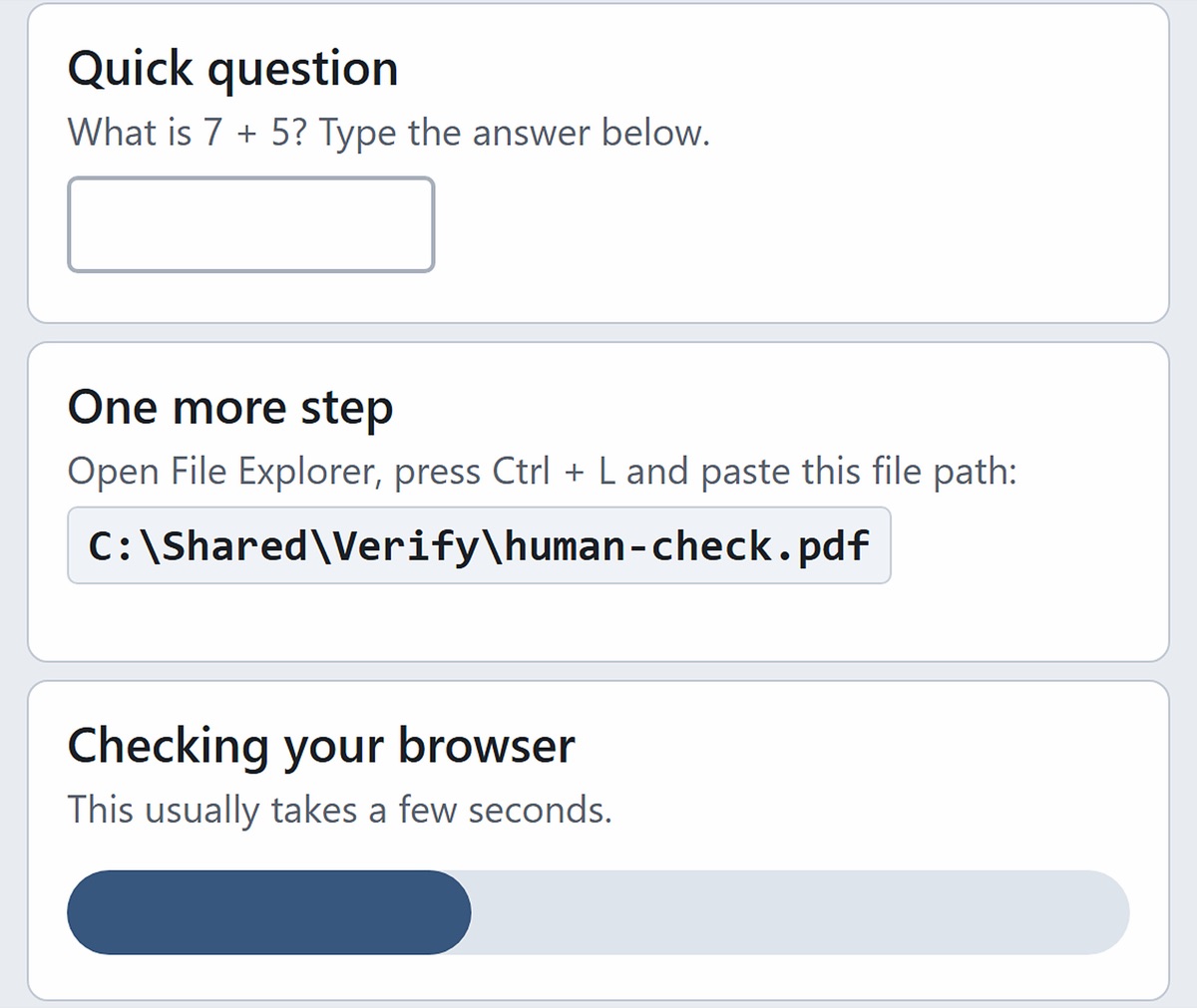
Paste this path into File Explorer
The newer version, known as FileFix. The text you paste holds a command, then a long run of spaces, then a file path. The address bar only shows the path, but the hidden command runs.
What happens when you press Enter
Microsoft has tracked these lures delivering password stealers and remote-access tools. Our stand-in prints what one of those does quietly: it reads saved passwords and sends them off.
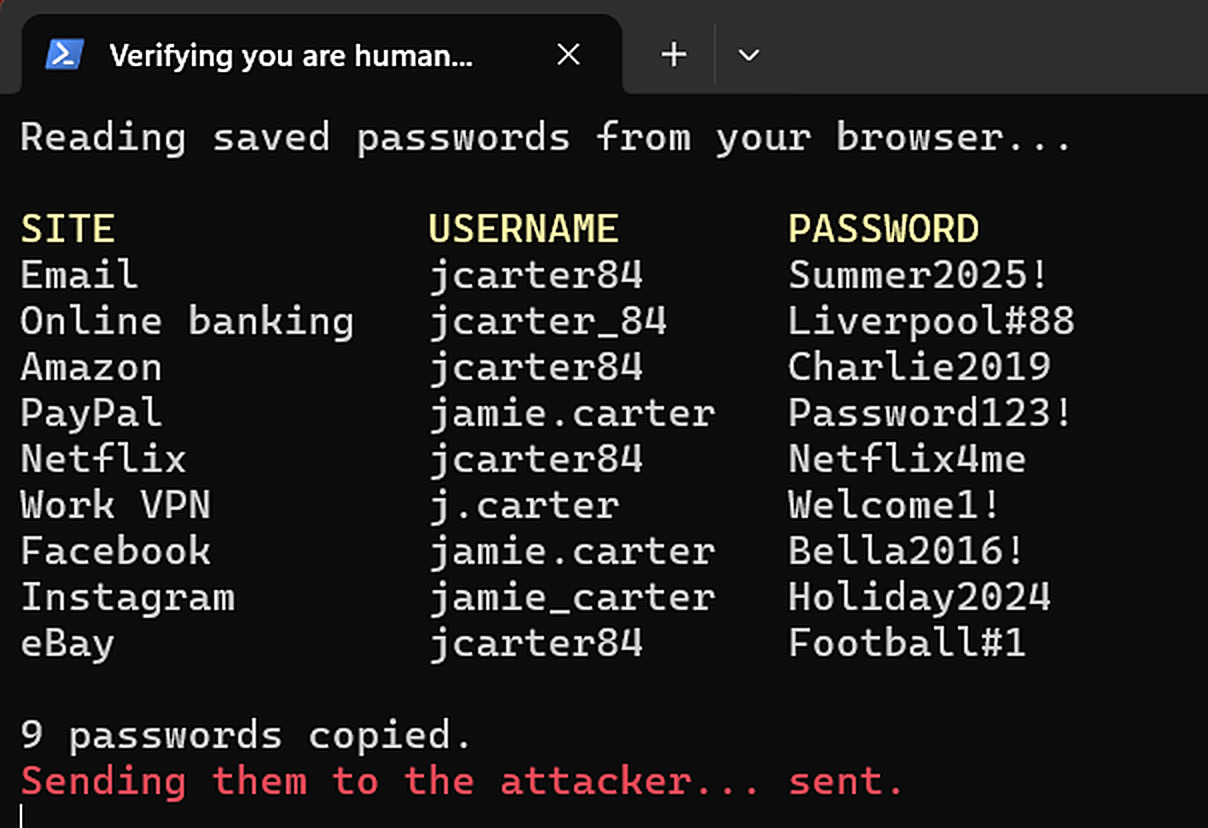
- Dressed up as the checkThe window calls itself “Verifying you are human…”, so it looks like part of the page.
- Saved passwords, read outSites, usernames and passwords saved in the browser. A real stealer does this without showing you.
- SentBy the time the window closes, they’re gone. That’s why you change passwords from a different device.
What Windows remembered
The question we wanted answered: if you did fall for one, can you tell afterwards? We ran each version and checked Windows’ own histories: the Run box history and File Explorer’s typed paths.
- Command pasted into the Run boxSaved in the Run box history, at the top of the list
- Command pasted into File Explorer’s address barRan, but saved in neither the Run history nor File Explorer’s typed paths
- A real folder path typed into File ExplorerSaved in typed paths, so that history was working
- Command hidden behind spaces and a fake pathAddress bar showed only the path. Pressing Home showed the command
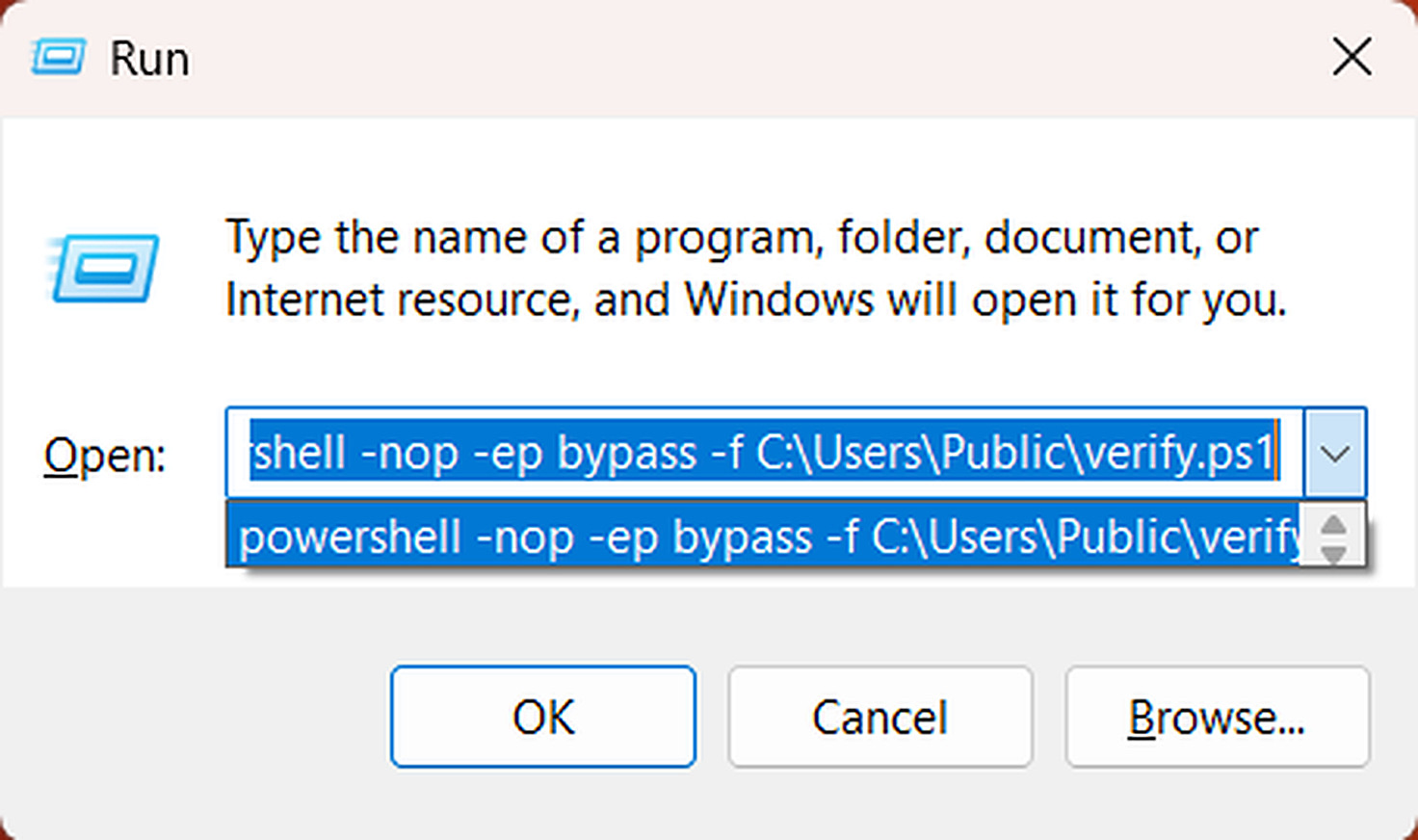
- Open the history herePress Windows + R, then click the small arrow at the end of the box.
- The pasted command, still therePowerShell told to skip its safety settings and run a file from a public folder. Nobody types that by accident.
reg query "HKCU\Software\Microsoft\Windows\CurrentVersion\Explorer\RunMRU"Think you clicked one?
- Press Windows + R, then click the small arrow at the end of the box to see its history.
- Look for anything you don’t remember typing, especially long lines starting with powershell or mshta.
- If you find one, disconnect from the internet and run a full security scan.
- Change your passwords from a different device, with two-factor switched on.
An empty history doesn’t prove you’re safe: a command that fails isn’t saved, the list can be cleared, and the File Explorer version didn’t appear there at all in our test.
Where we look on a work machine
Someone tells us “I pasted something into a box”. These are the first places we check, in order.
- The Run box history
The RunMRU key holds what this user typed or pasted into the Run box. Its MRUList value gives the order, newest first.
RunMRU - File Explorer’s typed paths
The TypedPaths key next to it records what was typed into the address bar. In our test it kept a real folder but not a pasted command, so we never rely on it alone.
TypedPaths - Process history
Anything run from the Run box is started by explorer.exe. PowerShell or mshta started by explorer.exe with a long command line, just after a browser session, is a strong lead.
Odd command lines - Then follow the command
What it downloaded, what that ran, what it set up to survive a restart and where it sent data.
Abused built-in tools
What this doesn’t prove
Tested 9 Nov 2026.
- Microsoft’s 1.1 million is what its Defender product saw [1], so it is a floor, not the total.
- We tested the File Explorer address bar. Many real FileFix pages use the browser’s upload window instead, which we didn’t test, and it may behave differently.
- The wording on our checks varies from real ones. Don’t wait to see these exact words: the rule is that a real check never asks you to run anything.
Go deeper on our wiki
Sources
- Microsoft Digital Defense Report 2026Microsoft, 1 Oct 2026
- Think before you Click(Fix): analysing the ClickFix social engineering techniqueMicrosoft Threat Intelligence, 21 Aug 2025
- How to spot a CAPTCHA scamUS Federal Trade Commission, 8 Jun 2026
- Fake CAPTCHA warningSwiss National Cyber Security Centre, 24 Feb 2026
- FileFix: a ClickFix alternativemr.d0x, 23 Jun 2025
- FileFix in the wildAcronis Threat Research Unit, 16 Sep 2025
- Threat hunting case study: FileFixIntel 471, 3 Jun 2026
- KongTuke FileFix leads to new Interlock RAT variantThe DFIR Report, 14 Jul 2025