The setting with no switch
Attack surface reduction rules, ASR rules for short, are part of Microsoft Defender, the antivirus that comes free with Windows. Each rule blocks one trick that malware relies on. One stops other programs reading the memory of lsass.exe, the Windows process that handles signing in, which malware goes after to steal logins.
Companies switch them on across all their PCs at once, with management tools such as Microsoft Intune. Your own PC has the same rules: Microsoft says they work on any edition of Windows that includes Defender, Windows 11 Home included. But there’s no switch for them in Settings or the Windows Security app, and Microsoft’s settings reference says the Windows default is off.
Microsoft Secure Score shows how much weight they carry. It’s the to-do list Microsoft gives businesses for tightening their security, with every fix ranked and worth points. In Microsoft’s own example, five of the top seven fixes are ASR rules.
- 1. Turn on Microsoft Defender Antivirus real-time protection for LinuxNot an ASR rule. Worth 10 points.
- 2. Block credential stealing from the Windows local security authority subsystemASR rule. Stops login theft from lsass.exe. Worth 9 points.
- 3. Block process creations originating from PSExec and WMI commandsASR rule. Stops programs being started through two tools that can run code on other PCs, which attackers use to spread. Worth 9 points.
- 4. Block persistence through WMI event subscriptionASR rule. Stops malware using WMI, a Windows management feature, to keep itself running. Worth 9 points.
- 5. Turn on Microsoft Defender Antivirus PUA protection in block mode for LinuxNot an ASR rule. Worth 9 points.
- 6. Block all Office applications from creating child processesASR rule. Stops Word, Excel and the rest starting other programs, a common trick in booby-trapped documents. Worth 9 points.
- 7. Block executable files from running unless they meet a prevalence, age, or trusted list criterionASR rule. Stops new or rarely seen programs running until they’ve built up trust. Worth 9 points.
This is Microsoft’s demo organisation, not a real one, and the order changes from one business to the next. Secure Score ranks each fix by the points left to earn, how hard it is to do and how much it affects users.
First, the five quick ones
Windows mostly does protect you. It comes with Microsoft Defender, a free antivirus in the Windows Security app, and Bradley’s view is that once it’s configured it’s a very secure product. Our antivirus write-up has the independent lab results. It just needs the right settings turned on.
The screens below are from a fresh install of Windows 11 Pro, version 26H2, recorded on our test machine on 5 Nov 2026. They show a brand-new PC before anyone has changed anything.
One: Settings, then Windows Update. Click Check for updates and restart if it asks. It should end on “You’re up to date”. Bradley’s advice is to turn on “Get the latest updates as soon as they’re available” too, so the PC stays as up to date as it can. Be clear what that switch does: Microsoft says it brings non-security updates, fixes and improvements early, and you get the regular security updates whether it’s on or off.
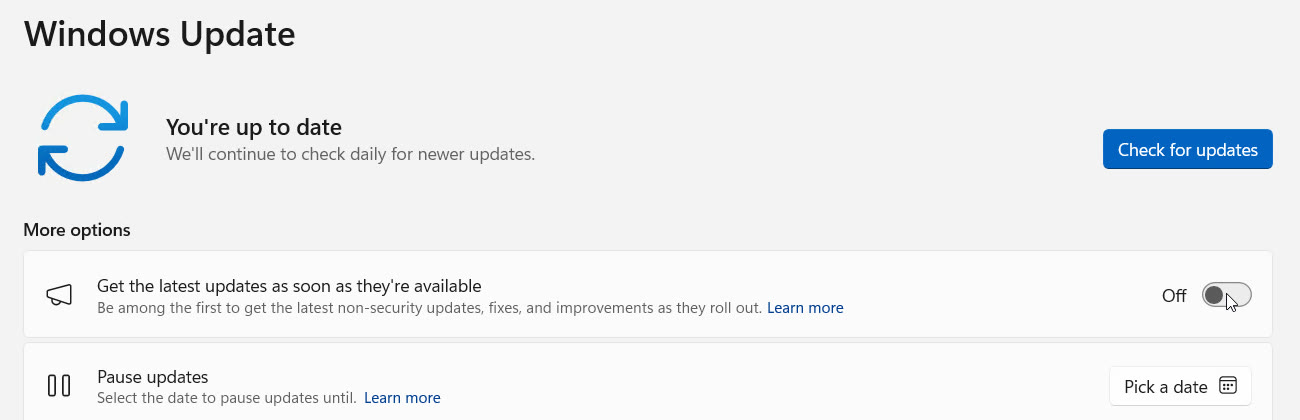
- Click Check for updatesLet it finish, and restart if Windows asks. If updates are paused, choose Resume first.
- What you want to see“You’re up to date”. Windows keeps checking daily after that.
- Off on a new PCTurn this on to get Microsoft’s newest fixes and improvements as soon as they’re out.
Two: Windows Security, then Virus & threat protection, then Manage settings. Every switch on this page should be on. On our fresh install they already were, Tamper Protection included. That one stops malicious apps changing Defender’s settings, such as switching real-time protection off. Microsoft turns it on by default, but it’s worth checking.
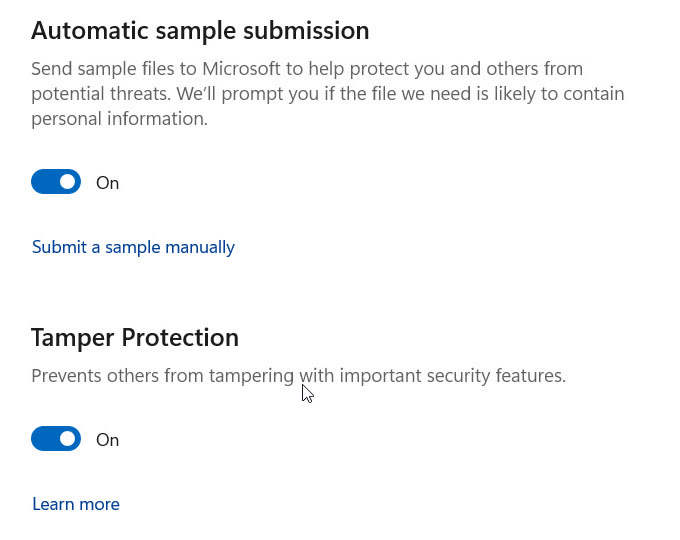
- Every switch onAutomatic sample submission is on. Real-time protection and cloud-delivered protection sit higher up the page. All were on by default here.
- Tamper ProtectionStops malicious apps switching your antivirus settings off. Leave it on.
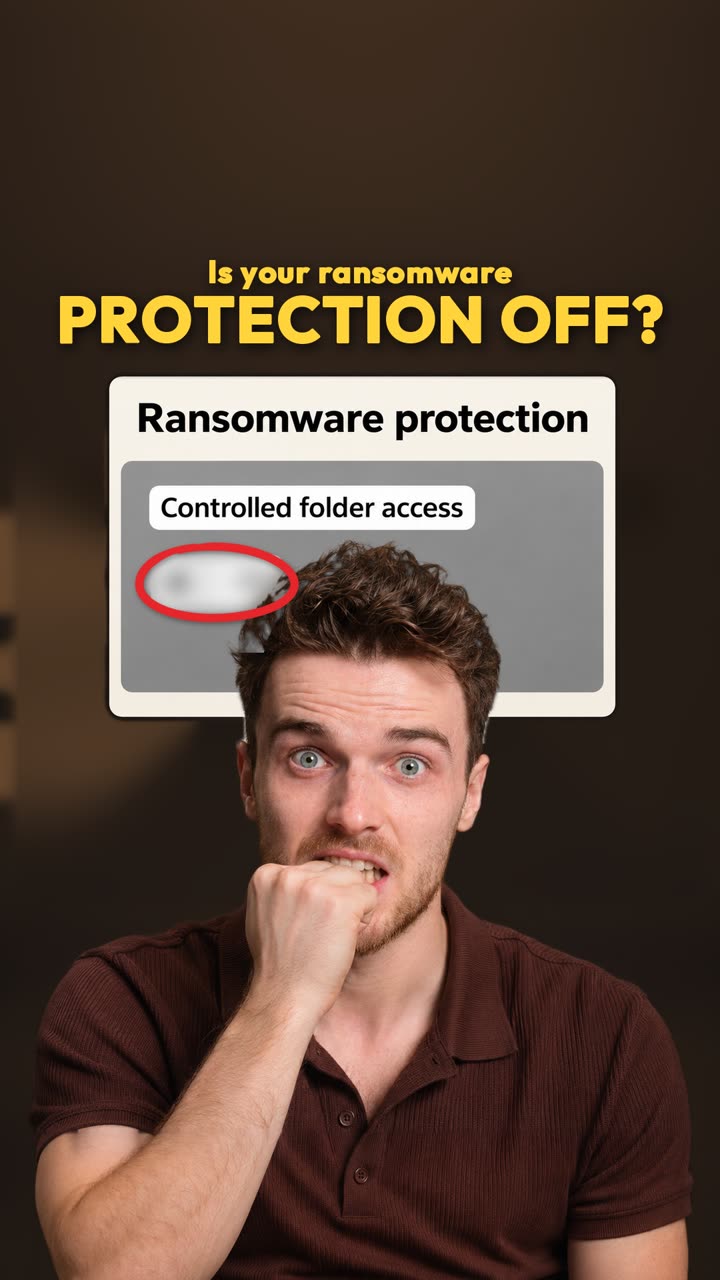
Three: just below, Ransomware protection. Ransomware is malicious software that locks your files and demands money to unlock them. Controlled folder access cuts the damage by letting only trusted apps change the files in protected folders. Microsoft turns it off by default, so turn it on. If it blocks an app you need, choose “Allow an app through Controlled folder access” and add that app.
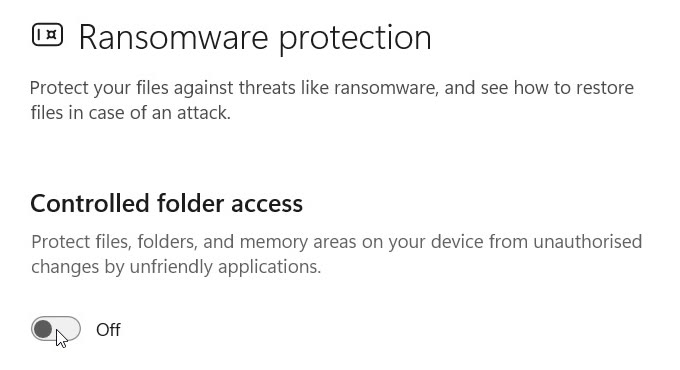
- Off by defaultTurn it on. Documents, Pictures, Music, Videos and Favorites are the folders it protects by default.
Four: App & browser control, then Reputation-based protection settings. Turn on Potentially unwanted app blocking. These apps aren’t quite malware. Think adware, and the junk that comes bundled with free downloads.
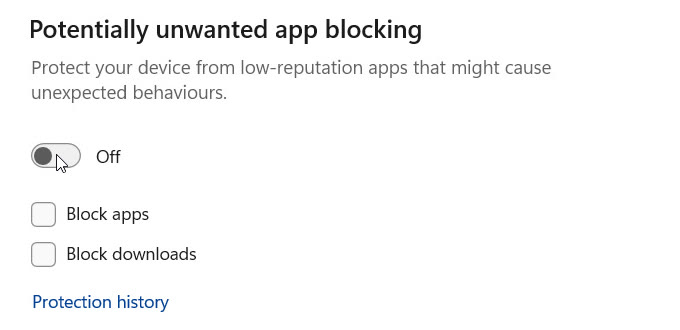
- Off on a new PCTurn it on.
- Both boxes tickedOnce it’s on, keep Block apps and Block downloads both ticked.
There’s a catch Windows doesn’t show you. On a PC that no business manages, Defender’s own setting for these apps starts in audit mode: it notes them but doesn’t block them. That’s what Defender reported on our fresh install while this switch read Off.
Five: your Microsoft account. At account.microsoft.com, go to Security, then Manage how I sign in, and turn on two-step verification, so signing in needs your phone too. Microsoft’s Digital Defense Report 2025 says this kind of check, multifactor authentication, still blocks over 99% of unauthorised access attempts [13]. The short shows Microsoft’s help page for this step rather than a real account, so there’s no screen from our test machine here.
Check your own PC
- Settings › Windows Update: click Check for updates, restart if it asks, and turn on “Get the latest updates as soon as they’re available”.
- Windows Security › Virus & threat protection › Manage settings: every switch on, Tamper Protection included. Then, under Ransomware protection, turn on Controlled folder access.
- Windows Security › App & browser control › Reputation-based protection settings: turn on Potentially unwanted app blocking, with Block apps and Block downloads ticked.
- At account.microsoft.com › Security › Manage how I sign in, turn on two-step verification.
- Run the first PowerShell command above as administrator, then the check. All three rules should show Action 1.
Bradley reckons all six take about 15 minutes. If an app you use stops saving files afterwards, it may be Controlled folder access: allow that app rather than turning the protection off.
Rolling out ASR rules across a business
The three standard rules are the easy part. This is how Microsoft says to roll out the rest without breaking the apps people rely on.
- Block the standard three straight away
Microsoft says they can go to block mode without extensive testing, with two exceptions. If Configuration Manager runs your PCs, test the WMI rule in audit mode first, because its client relies on WMI. And where LSA protection is on, the LSASS rule is redundant.
LSASS memory theft - Audit the rest first
Audit mode logs what a rule would have blocked without stopping it. In Event Viewer, under Windows Defender › Operational, event 1122 is a rule firing in audit mode and 1121 is a block.
- Roll out in rings
Start with a small group of PCs, check what fired, then widen. Microsoft suggests expanding rings for large organisations.
- Keep exclusions tight
Microsoft warns that excluded files run unchecked and leave no events behind, and recommends excluding a single file rather than a folder. Watch for anything switching Defender off too, because the rules need it running.
Microsoft Defender disabled
What this doesn’t prove
Screens recorded on a fresh Windows 11 Pro install on our test machine, 5 Nov 2026.
- These screens come from one fresh install of Windows 11 Pro, version 26H2, on 5 Nov 2026. An older PC, or one set up by a shop or an employer, may start with different settings.
- The short shows each setting as Windows left it. It doesn’t show the switches being turned on, and the PowerShell commands weren’t run on camera. They’re Microsoft’s documented commands.
- The Secure Score list is Microsoft’s example organisation. A real business’s top fixes will differ.
- ASR rules need Microsoft Defender Antivirus active, with real-time protection on. With another antivirus in charge, they don’t apply.
- Two-step verification stops most break-in attempts on your account, not all of them. Microsoft’s 2026 report calls phishing-resistant sign-ins, such as passkeys, the best safeguard.
Go deeper on our wiki
Sources
- ASR rules overviewMicrosoft Learn, updated 4 Aug 2026
- ASR rules referenceMicrosoft Learn, updated 9 Sep 2026
- Configure ASR rules and exclusionsMicrosoft Learn, updated 8 Sep 2026
- Attack surface reduction events in Windows Event ViewerMicrosoft Learn, updated 2 Jul 2026
- Attack surface reduction frequently asked questionsMicrosoft Learn
- Attack surface reduction settings (Intune reference)Microsoft Learn, updated 1 Jul 2026
- Assess your security posture through Microsoft Secure ScoreMicrosoft Learn, updated 3 May 2026
- Protect folders from ransomware with controlled folder accessMicrosoft Learn, updated 25 Aug 2026
- Block potentially unwanted applications with Microsoft Defender AntivirusMicrosoft Learn, updated 16 Sep 2026
- Prevent changes to security settings with Tamper ProtectionMicrosoft Support, read 5 Nov 2026
- Get Windows updates as soon as they’re available for your deviceMicrosoft Support, read 5 Nov 2026
- How to use two-step verification with your Microsoft accountMicrosoft Support, read 5 Nov 2026
- Microsoft Digital Defense Report 2025, page 9Microsoft, Oct 2025
- Microsoft Digital Defense Report 2026Microsoft, Oct 2026
- Windows Update and Windows Security screens, and Defender’s default settingsOur Windows 11 Pro 26H2 test machine, fresh install, 5 Nov 2026