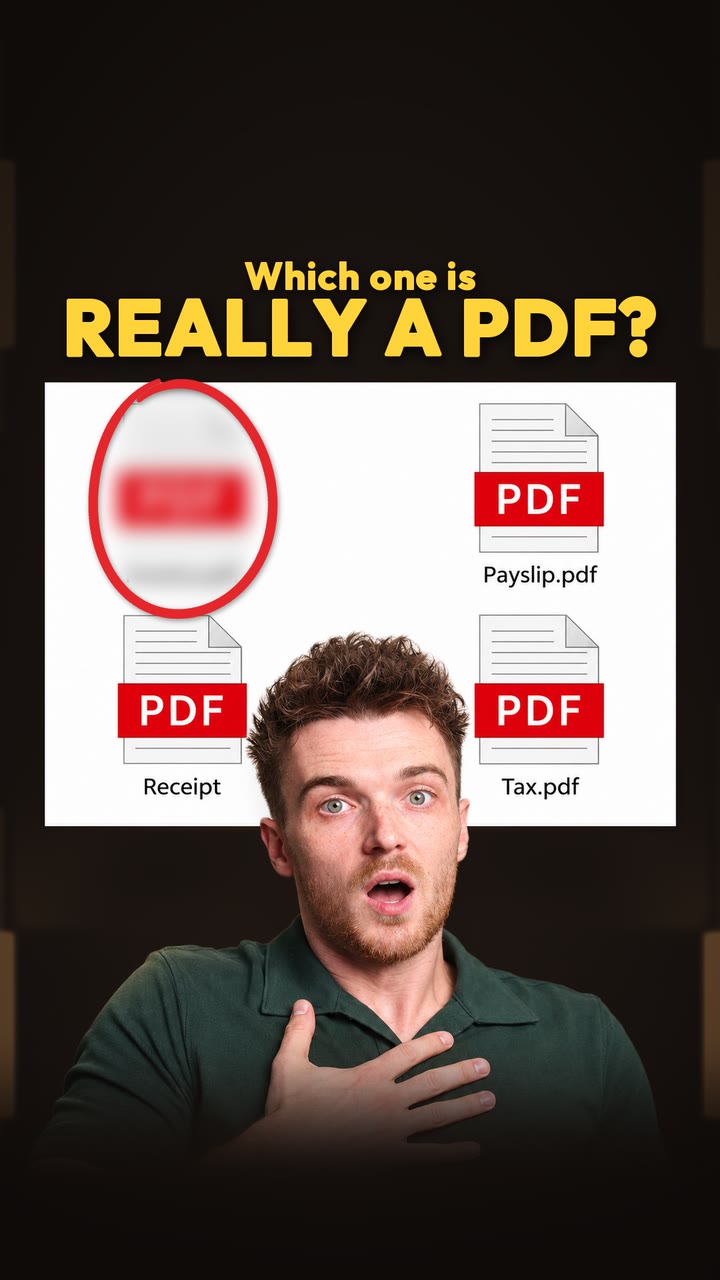
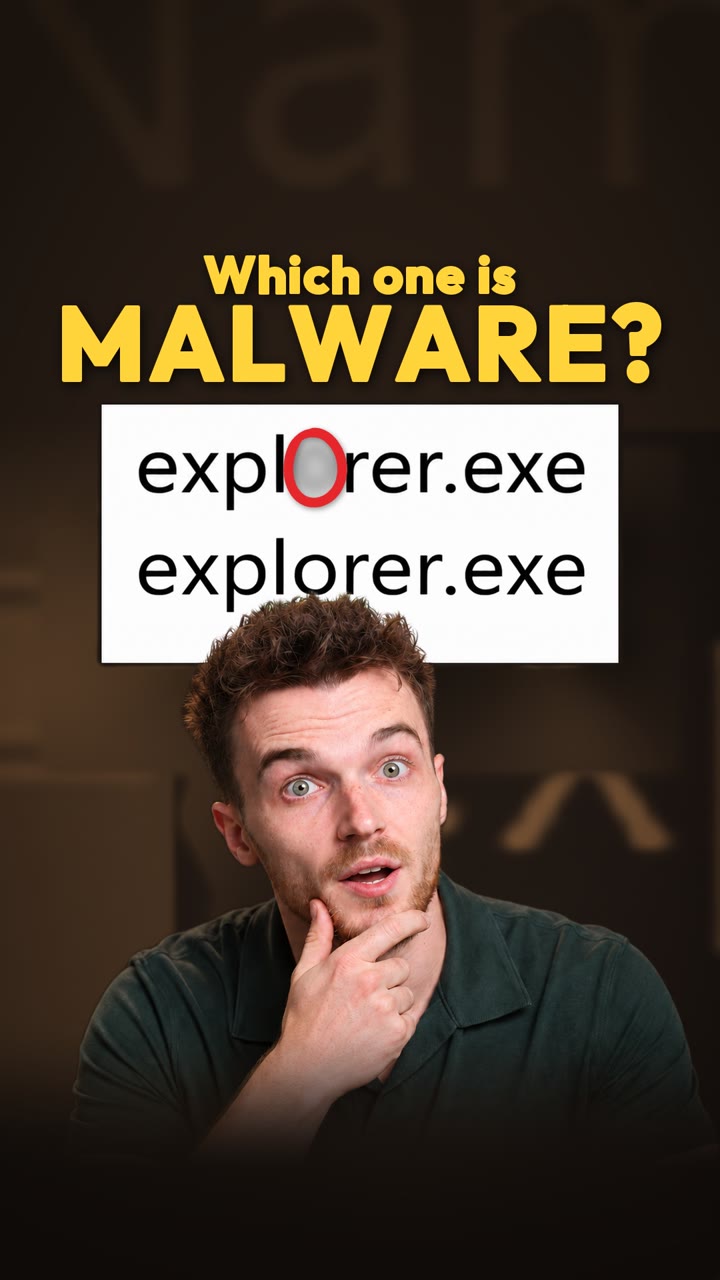
The three rounds
Malware rarely hides by being invisible. It hides in plain sight in Task Manager, under a name you expect to see. Each round below is a real list from our Windows 11 test machine with one program we planted to copy a trick attackers use. The giveaway is always in one column: the name itself, the account it runs under, or the description beside it.
expl0rer.exe, with a zero
The real Windows Explorer is the program behind your desktop and folders. Ours swapped the letter O for a zero. Windows never misspells its own processes, but in a long list your eyes read straight past one wrong letter. Its description copies the real one too, so only the spelling gives it away.
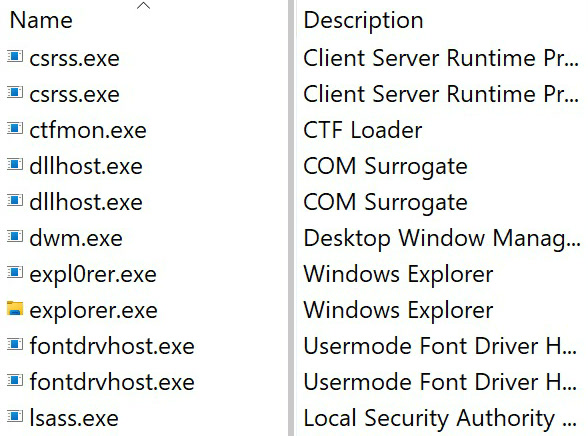
Two copies of lsass.exe
lsass.exe is the Windows process that checks your sign-ins, and a normal PC runs only one. So one of these is lying. On our test machine the real one ran as SYSTEM, the account Windows uses for itself. The copy we planted ran under a person’s account, and a system process under a person is a red flag of its own.
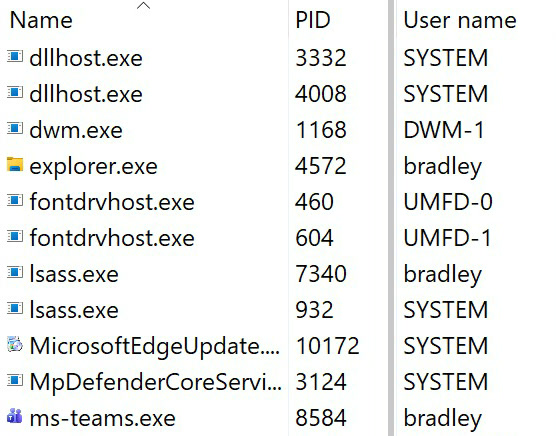
An update tool that says Windows PowerShell
UpdateHelper.exe looks like a dull update tool. The description beside it says Windows PowerShell, the tool people use to run commands on a PC. Attackers rename tools to get past security rules that only read the name. The description lives inside the program, so renaming the file doesn’t change it.
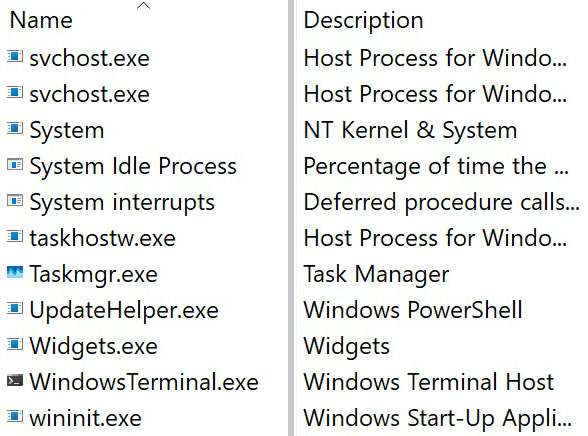
If you got all three, well done. None of these signs proves a program is malware on its own, because there is sometimes an innocent reason, but each one is worth a closer look. Between them they cover four of the 10 red flags on our wiki: misspelt names, extra copies, the wrong account and renamed tools.
What we planted, and what it shows
We built all three rounds on a Windows 11 test machine on 9 Nov 2026. Each stand-in was the same small program of ours, given a new name and the description of the Windows program it copies. None of them needed an administrator prompt to start, and Windows Security didn’t block or flag any of them.
The pictures above are cropped. Task Manager shows more columns between the ones we kept, and we cut those out so each round fits on a phone.
Round three is a look-alike: our program was given PowerShell’s description, rather than being a real copy of PowerShell. To check the claim in the video, we also copied the real powershell.exe, renamed the copy rename-test.exe and read its properties. The description still said Windows PowerShell. We never ran that copy, and deleted it straight after.
Both tricks are well known. MITRE ATT&CK, the public catalogue of attacker techniques, lists borrowing the name of a real program as T1036.005 and renaming a real tool as T1036.003. Its detection advice for the second is to compare the file name on disk with the original file name stored inside the program, the same check our wiki’s renamed binaries page walks through.
The same checks in PowerShell
Task Manager is enough for one PC. These two commands give you the same columns as a list you can sort or save. Run PowerShell as administrator, or some rows come back blank. Our wiki has more ways to list processes.
Get-Process -Name lsass -IncludeUserName | Select-Object Id, UserNameGet-Process | Select-Object Name, Id, Description | Sort-Object NameCheck your own PC
- Press Ctrl + Shift + Esc to open Task Manager, then choose Details.
- Click Name to sort the list, then read the Windows names letter by letter: explorer.exe, svchost.exe, lsass.exe.
- Find lsass.exe. There should be one copy, and on our test machine it ran as SYSTEM in the User name column.
- Read the Description column beside each name. The name and the description should describe the same program.
- If something doesn’t add up, run a full scan or tell your IT or security team.
Don’t end the task straight away. You lose what it was doing, which is exactly what an investigator needs, and some odd-looking names belong to genuine software.
What we do next on a real case
Spotting the row is the start. These are the checks that tell us whether it is really malware, in the order we run them.
- Compare with a clean machine
We count the copies and read the account on a clean machine of the same Windows build, and expect a match. A second lsass.exe started by lsass.exe is a clone, made so its memory can be read for sign-in details.
lsass.exe - Read the original file name
Windows programs carry the file name they were built with. A running name that differs from it is the rename trick, though a few Windows files differ by design.
Renamed and unsigned binaries - Check its folder, parent and signature
A borrowed name can’t change where the file lives, which process started it, or who signed it.
Running from the wrong folder - Check it can’t come back
Look for anything set to start it again after a restart, such as a Run key, a service or a scheduled task.
Run and RunOnce keys
What this doesn’t prove
Tested 9 Nov 2026.
- None of these signs proves malware on its own. Some genuine software uses names that look like Windows ones, and a few Windows files carry a different original name by design.
- A description is only what a file claims for itself. Our stand-ins claimed to be Windows Explorer and the Local Security Authority, and Task Manager showed both claims as written.
- We found no public source that states which account lsass.exe runs as. SYSTEM is what our test machine showed, so compare with a clean machine of the same Windows build before you rely on it.
Go deeper on our wiki
Sources
- Misspelt Names, Extra Instances, Wrong Account and Renamed Binaries pagesInvicta Group Cyber wiki, read 13 Nov 2026
- lsass.exe and explorer.exe pagesInvicta Group Cyber wiki, read 13 Nov 2026
- Masquerading: Match Legitimate Resource Name or Location (T1036.005)MITRE ATT&CK, last modified 11 Sep 2026
- Masquerading: Rename Legitimate Utilities (T1036.003)MITRE ATT&CK, last modified 12 May 2026
- Task Manager captures and the PowerShell rename testOur Windows 11 test machine, 9 Nov 2026